
CVS - Room Booking System Guide
Intro
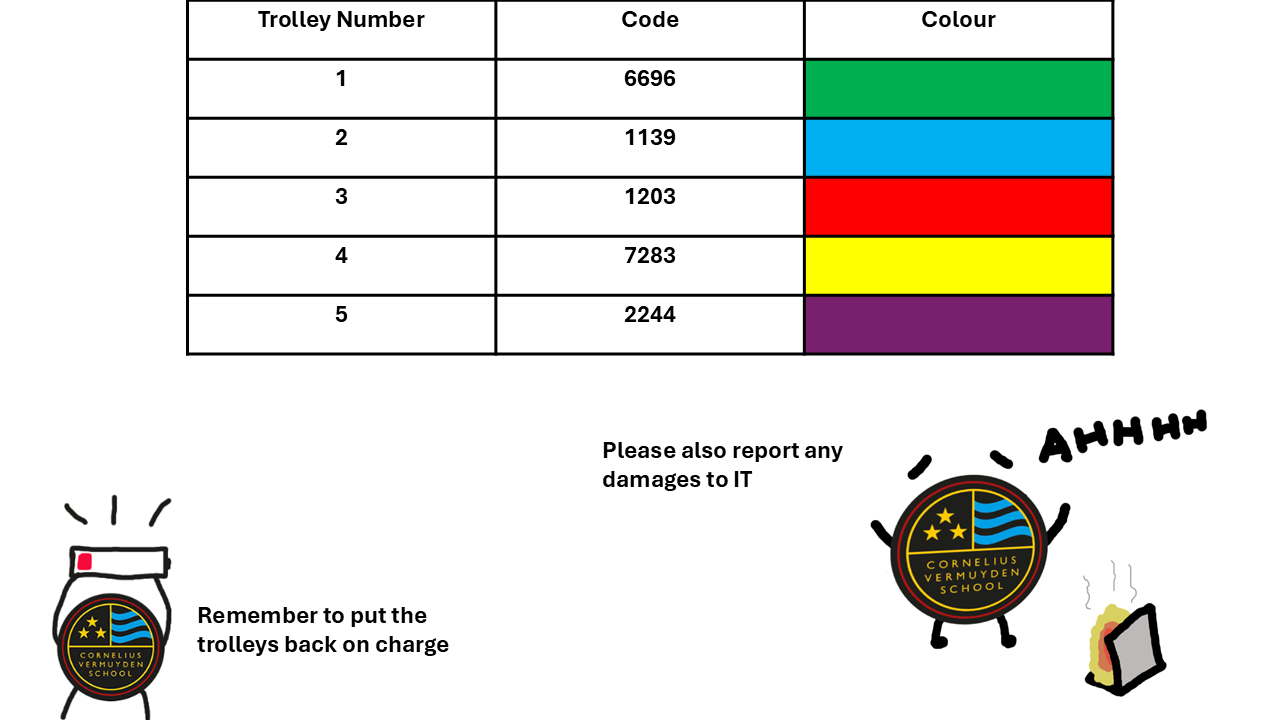
At Cornelius we use RoomBookingSystem to book laptops. Each trolley has 16 laptops in them. The trolleys are stored in the staff room and the codes / colours are as follows:
Accessing Room Booking System
You will first need to log onto the RoomBookingSystem portal via the browser.
Click here for the link > RoomBookingSystem
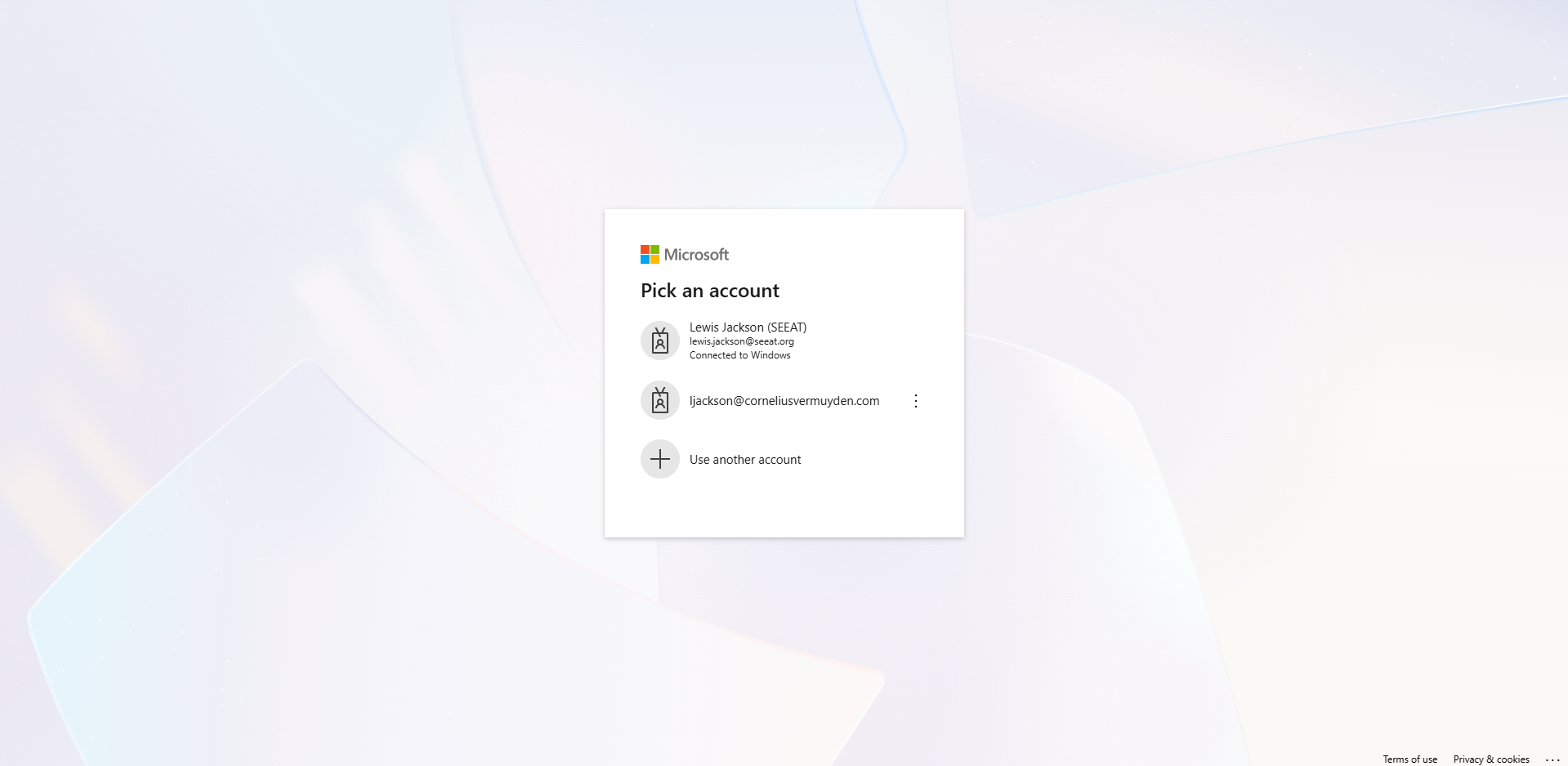
You will then need to log into your @corneliusvermuyden.com email. If you are already signed into Microsoft365, RoomBookingSystem will either sign you in automatically, or you will be brought to a page to select/add an account.
Example:
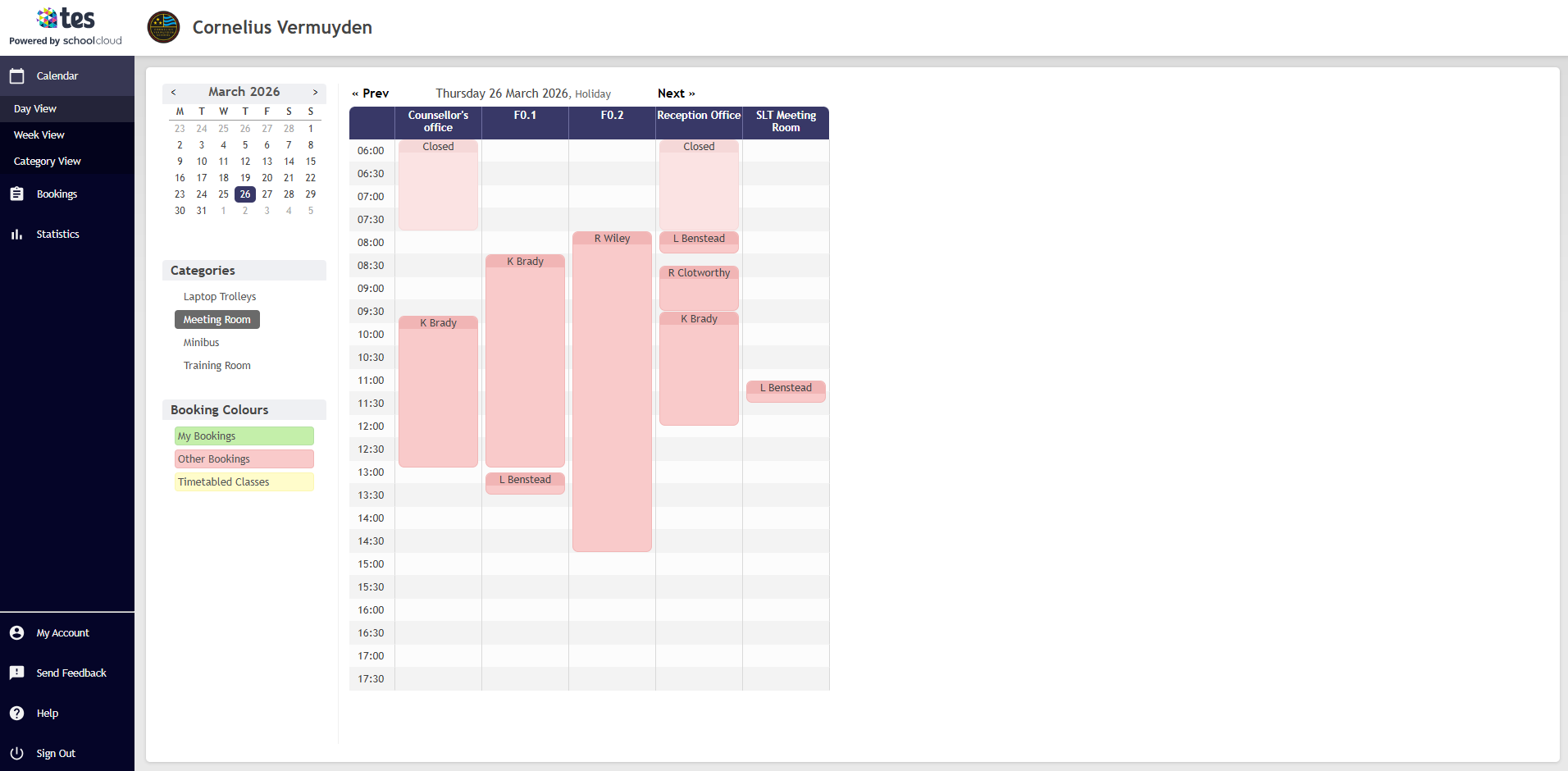
Here's how it should look once you're signed in. If it looks different, you may be on a different tab. Press "Day View" on the top left to be brought to the same screen.
Booking Trolleys
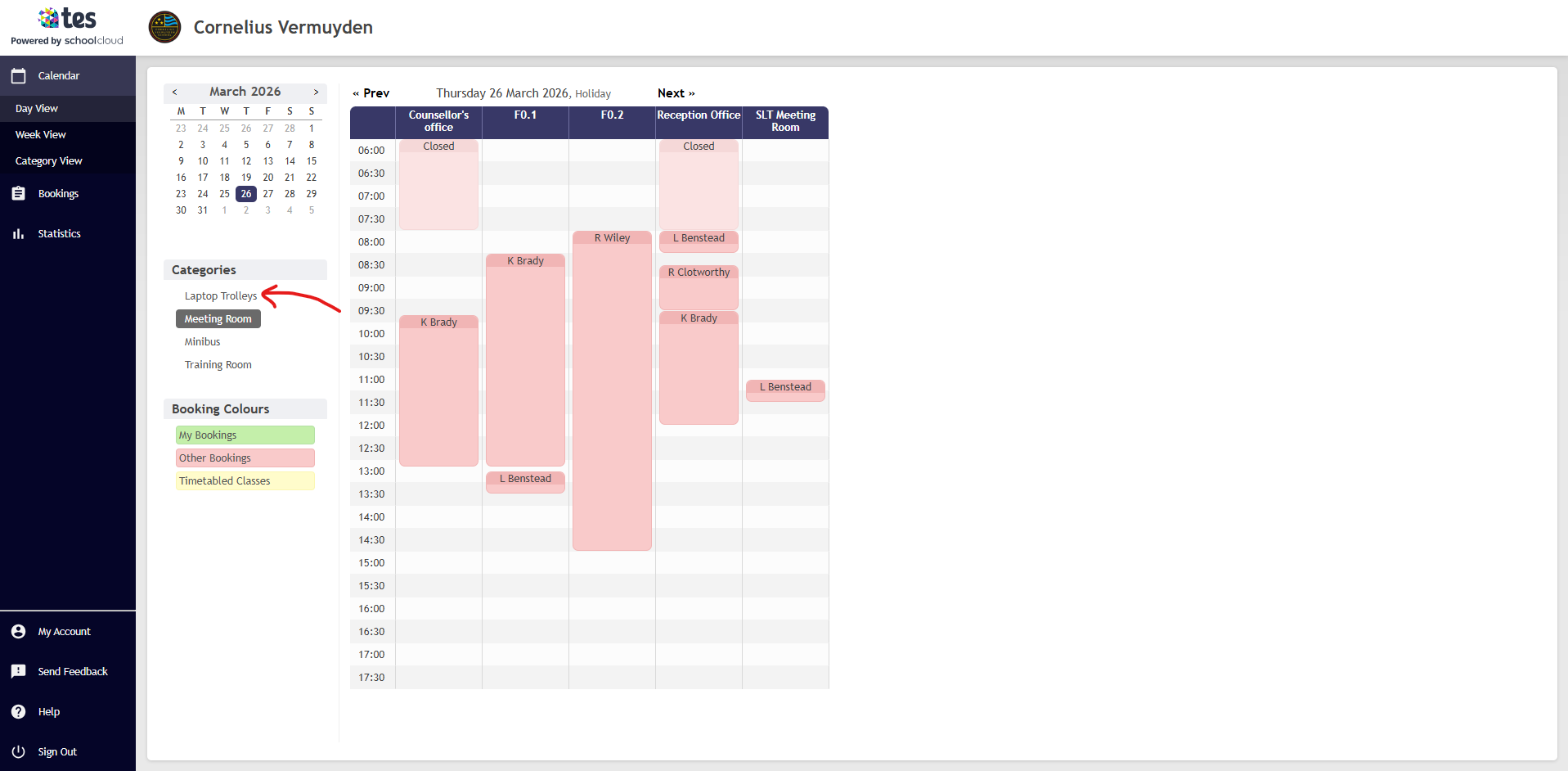
Select "Laptop Trolleys" under the "Categories" Section on the left hand side.
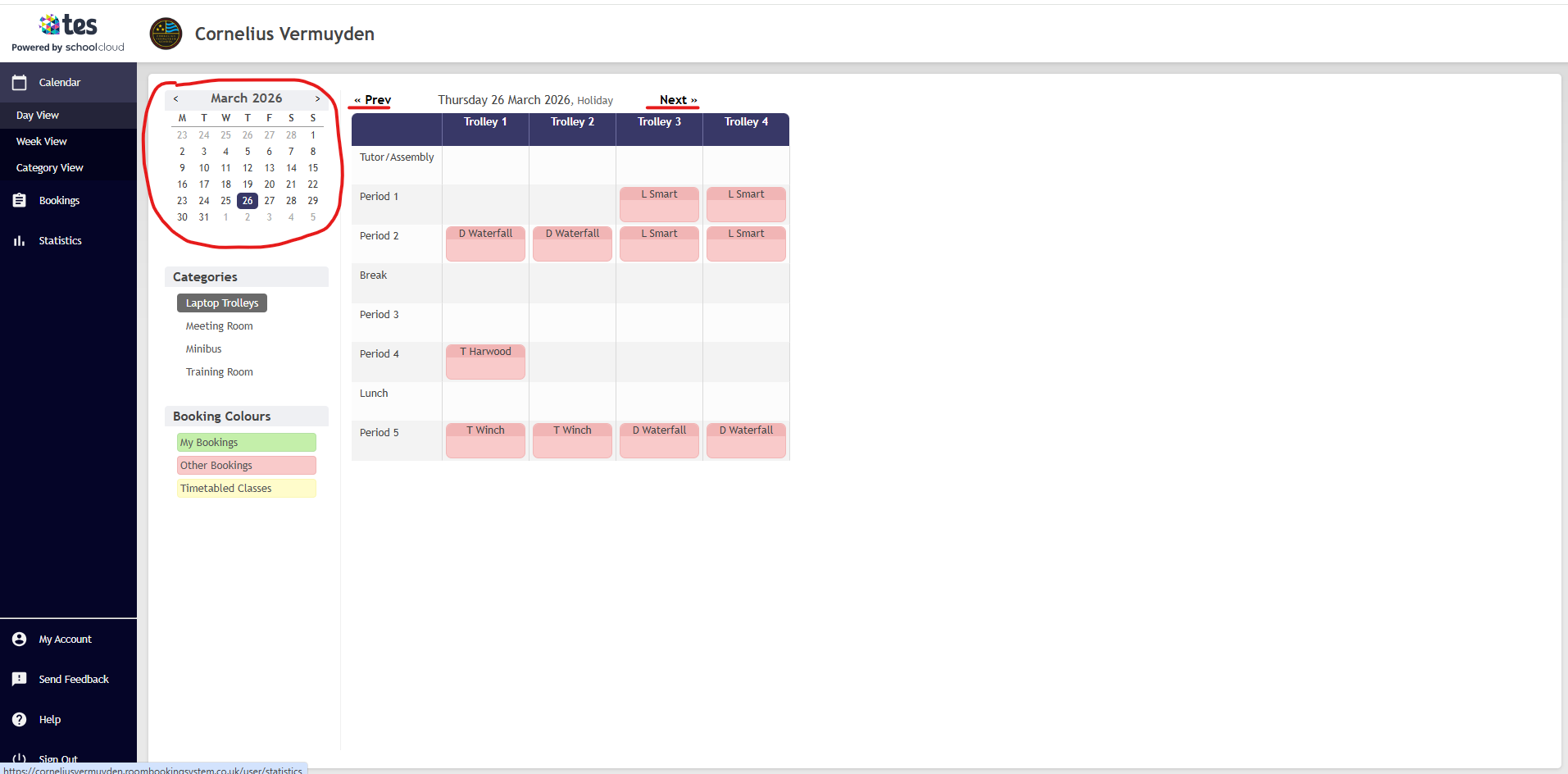
You can either use the calendar view in the top left to select the date, or navigate via the <<Prev / Next>> Icons.
Once you have the date, select the period/periods you want.
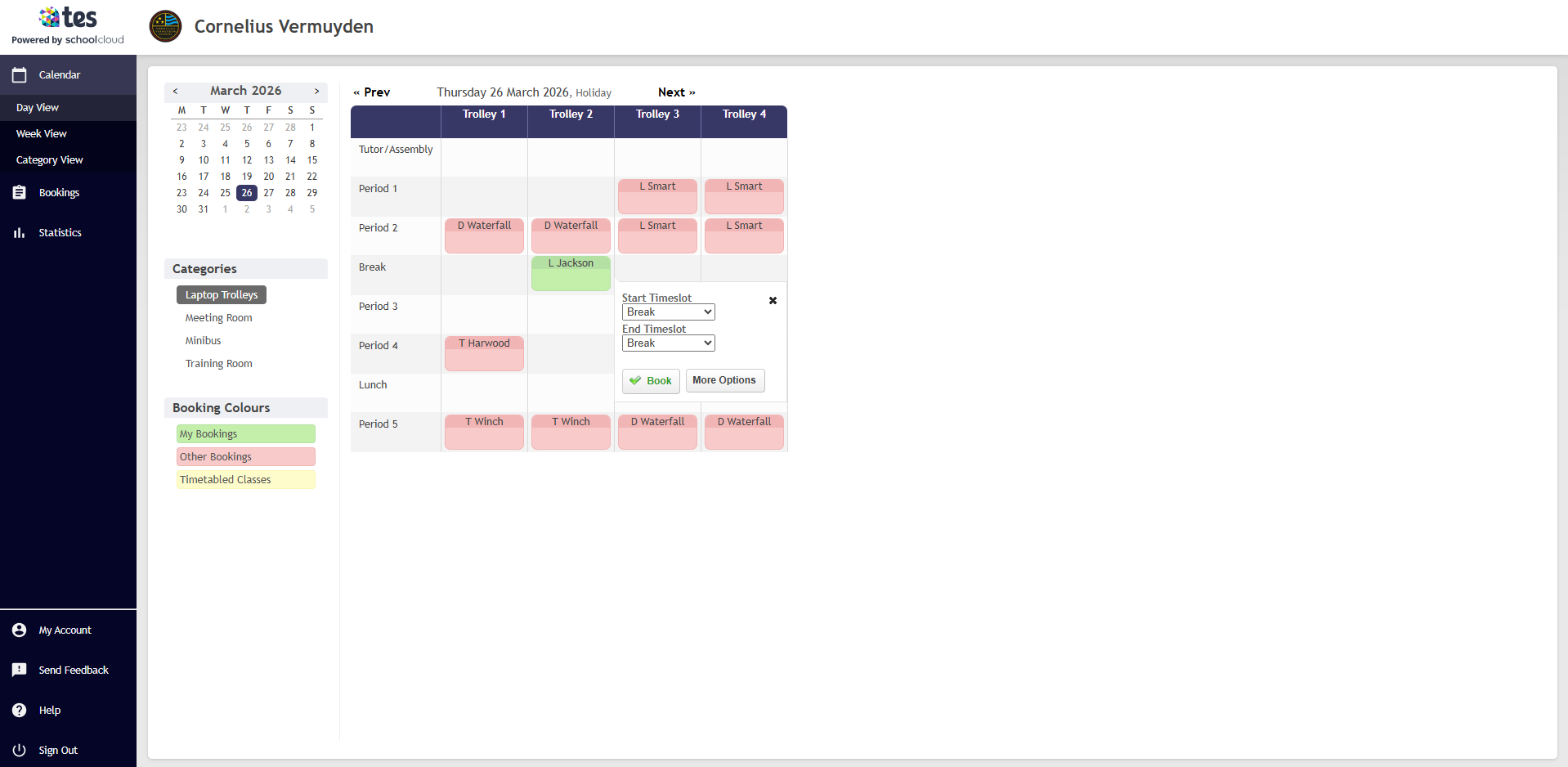
Select the slot.
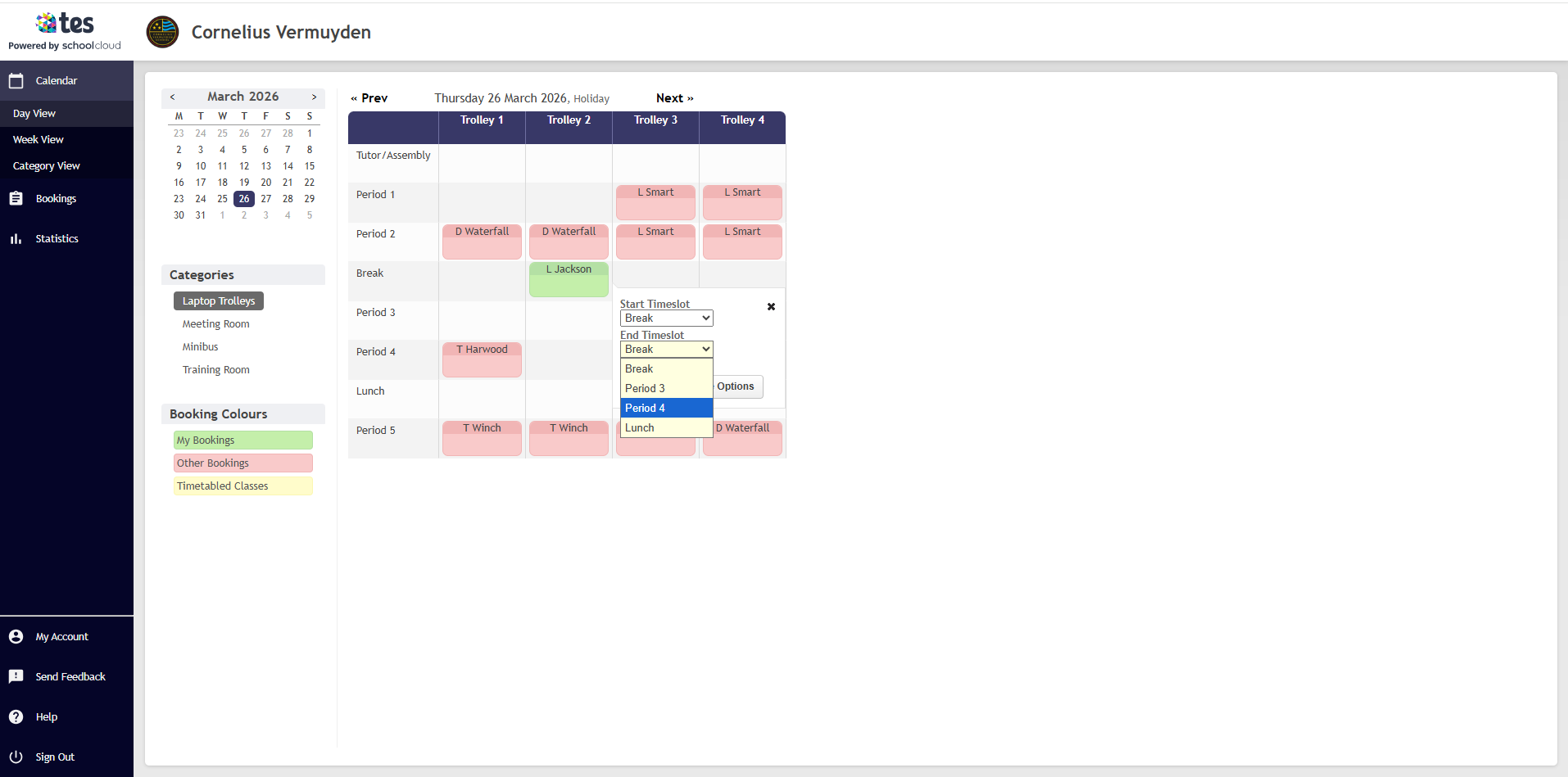
Select the period/periods you want.
Press "Book".
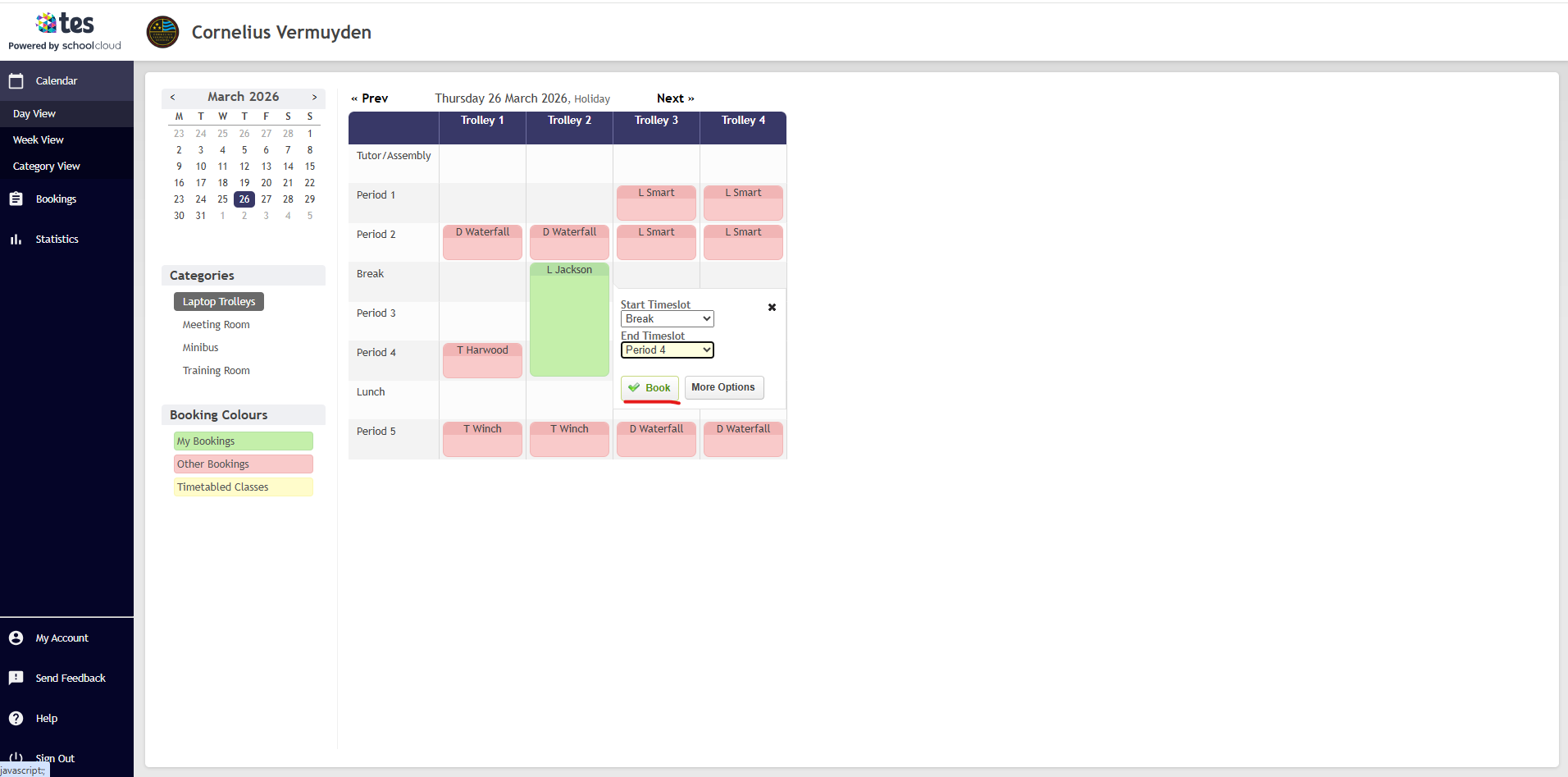
The trolley/trolleys have now been booked! Other members of staff will now see your slot.
Editing/Deleting Slot
Hover over the booked slot and press the left mouse button to select. Once selected you should see "Edit Booking" and "Delete Booking".
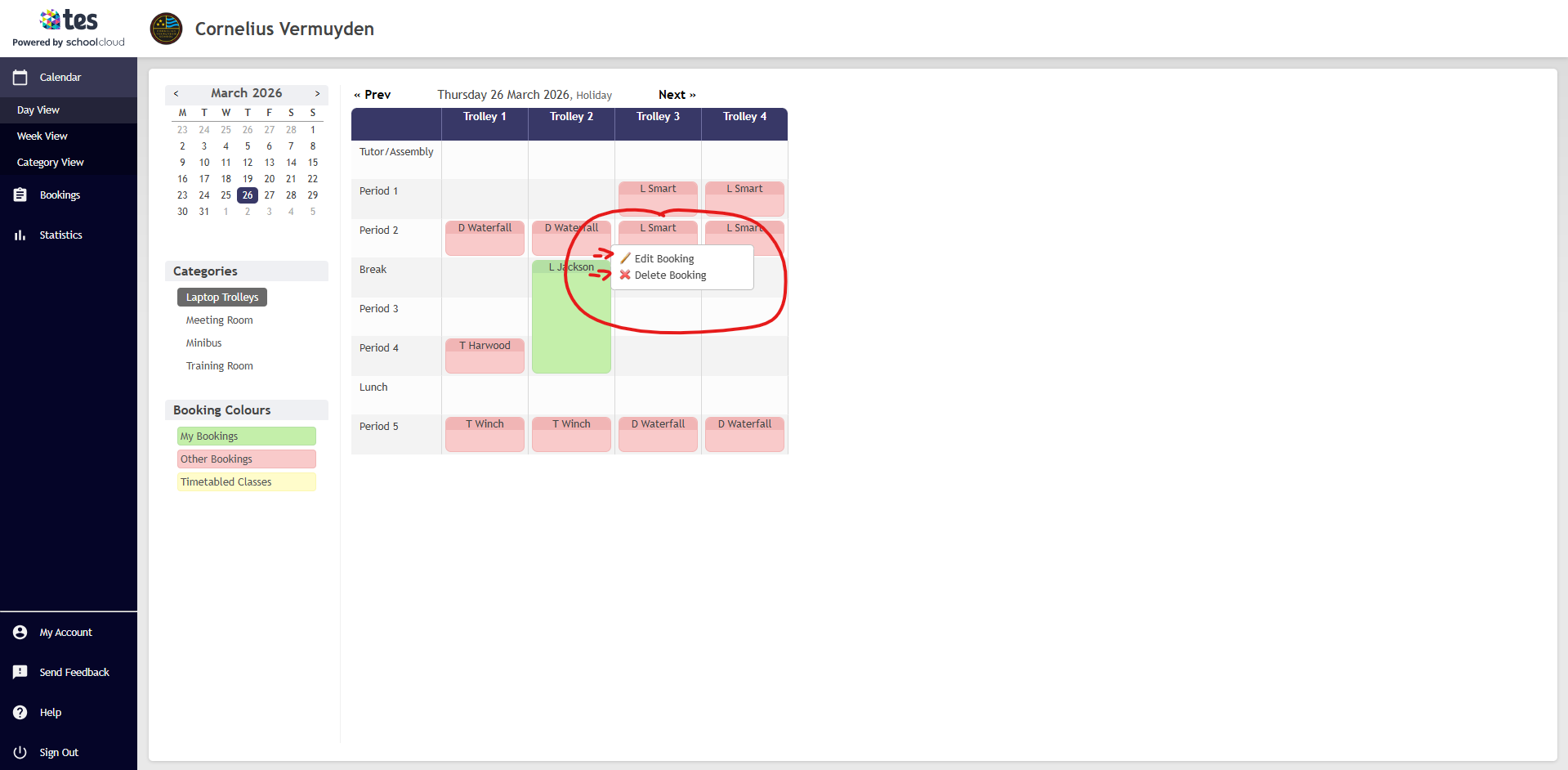
To edit simply select "Edit Booking" and to delete select "Delete Booking".
When you're finished with the trolley to put back in the staff room and on charge. Laptops don't work if they have no charge!
If there are any missing/damaged laptops please report to it@seeat.org.